Workflow Orchestrator At A Glance
Info
This article is for potential adopters considering Workflow Orchestrator (WFO) for their organization. It avoids software implementation details and favors high-level terminology over the finer semantics of WFO’s database models.
Workflow Orchestrator is a software framework for modeling the lifecycle of subscriptions to arbitrary products. The framework is open-source and written in the Python programming language. In organizations using WFO, software teams define products using the framework, along with workflows by which end-users manage each product’s lifecycle.
When a user subscribes a customer to a product, they run a create workflow, which produces a subscription to that product. That subscription can then be orchestrated by the other workflows associated with its product. For example, validate workflows ensure WFO’s database is kept in sync with any external resources allocated to a subscription, and terminate workflows deprovision the subscription along with those external resources.
Scenario: Adding a Link
Info
In this section, we highlight the experience of an end-user: in this case, a network operator setting up a link between two routers. While this example focuses on networking, WFO can be used for any kind of service, and provides no specific support for network products.
All screenshots are from the example-orchestrator project, which you can set up yourself to explore the product further.
Suppose that we have nodes in Amsterdam and London, and we want to establish a core link between them.
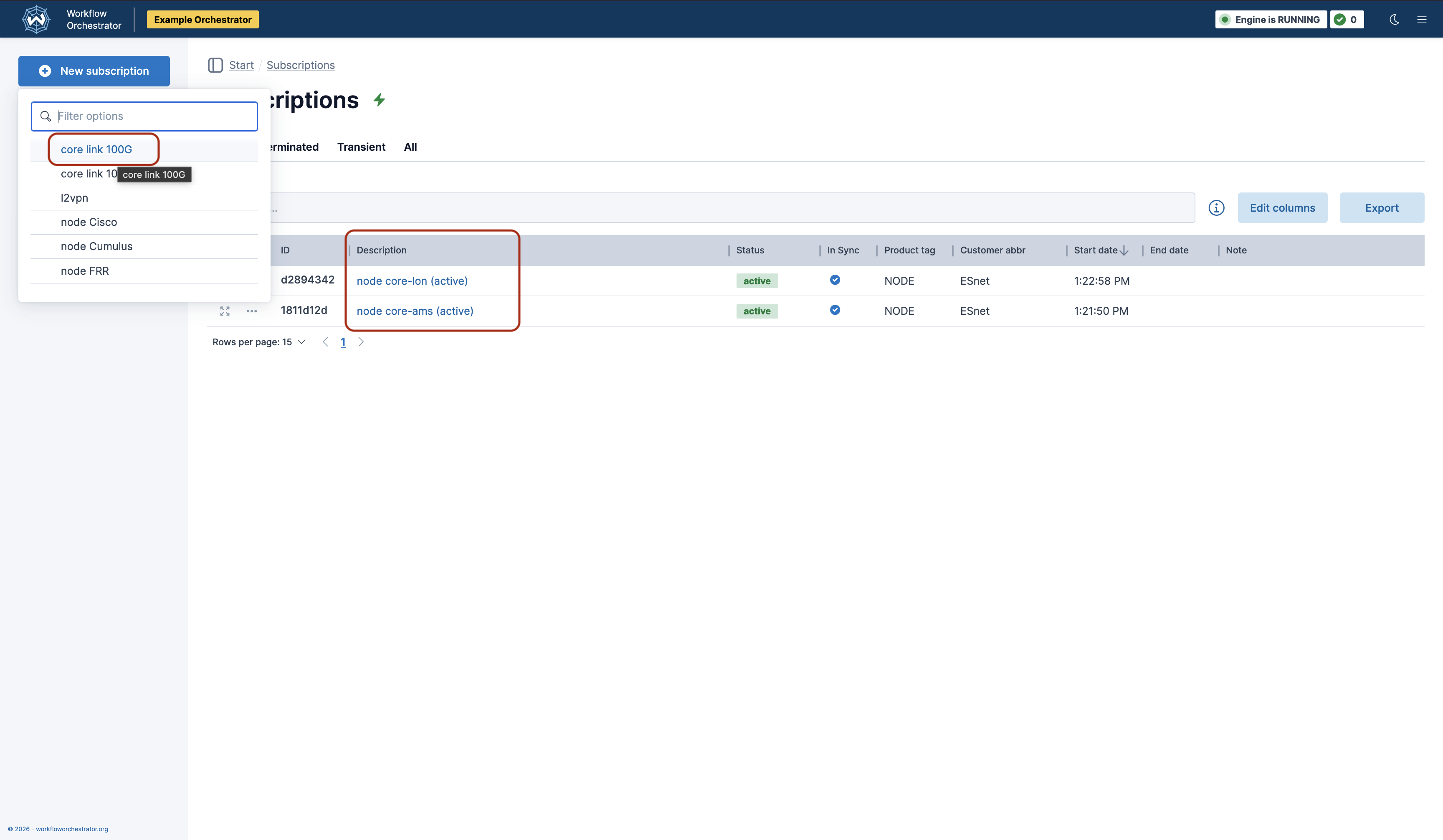
On the Subscriptions page, we can see that we already have a subscription for each node, so we create a link via the New Subscription dropdown.
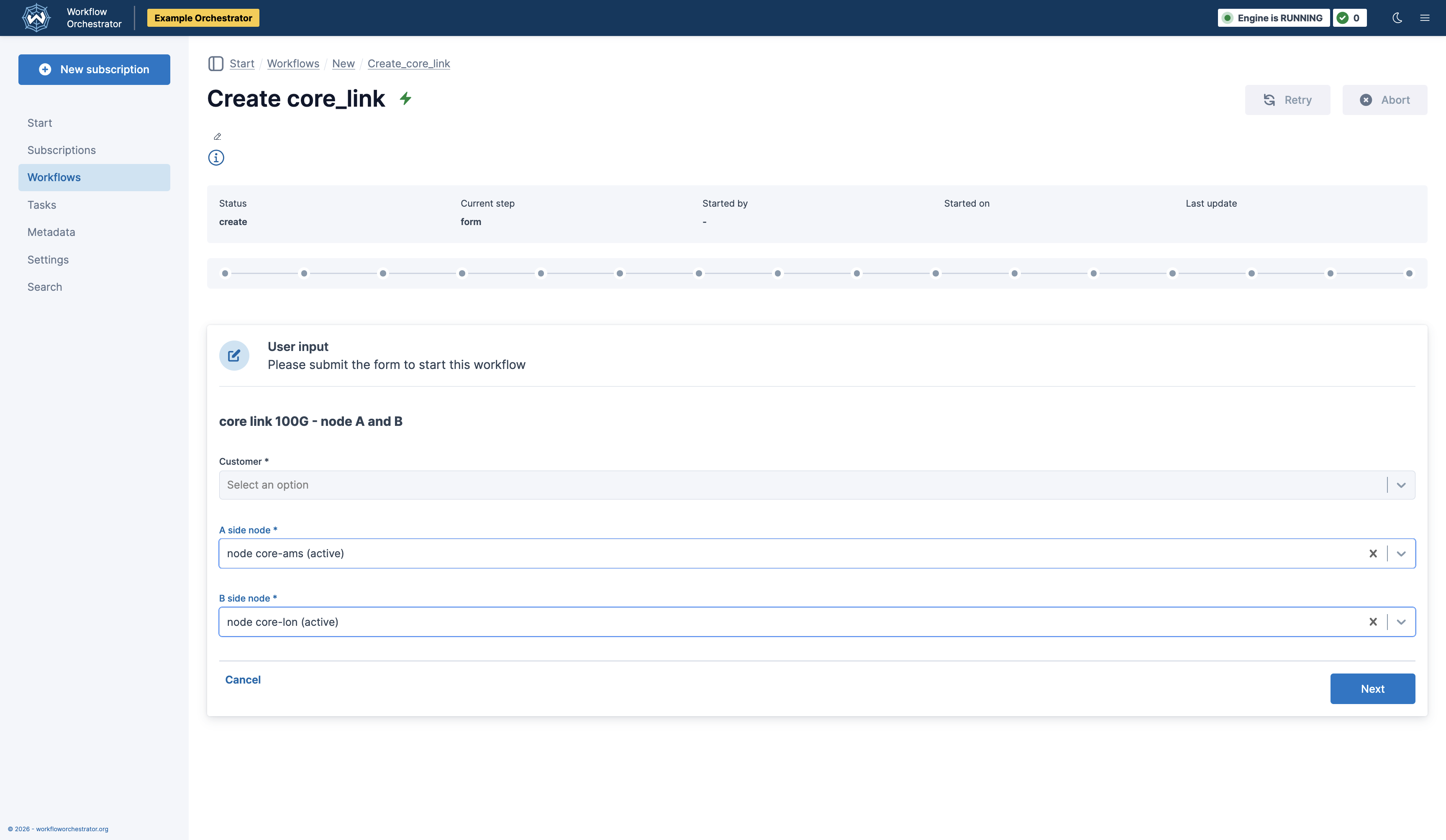
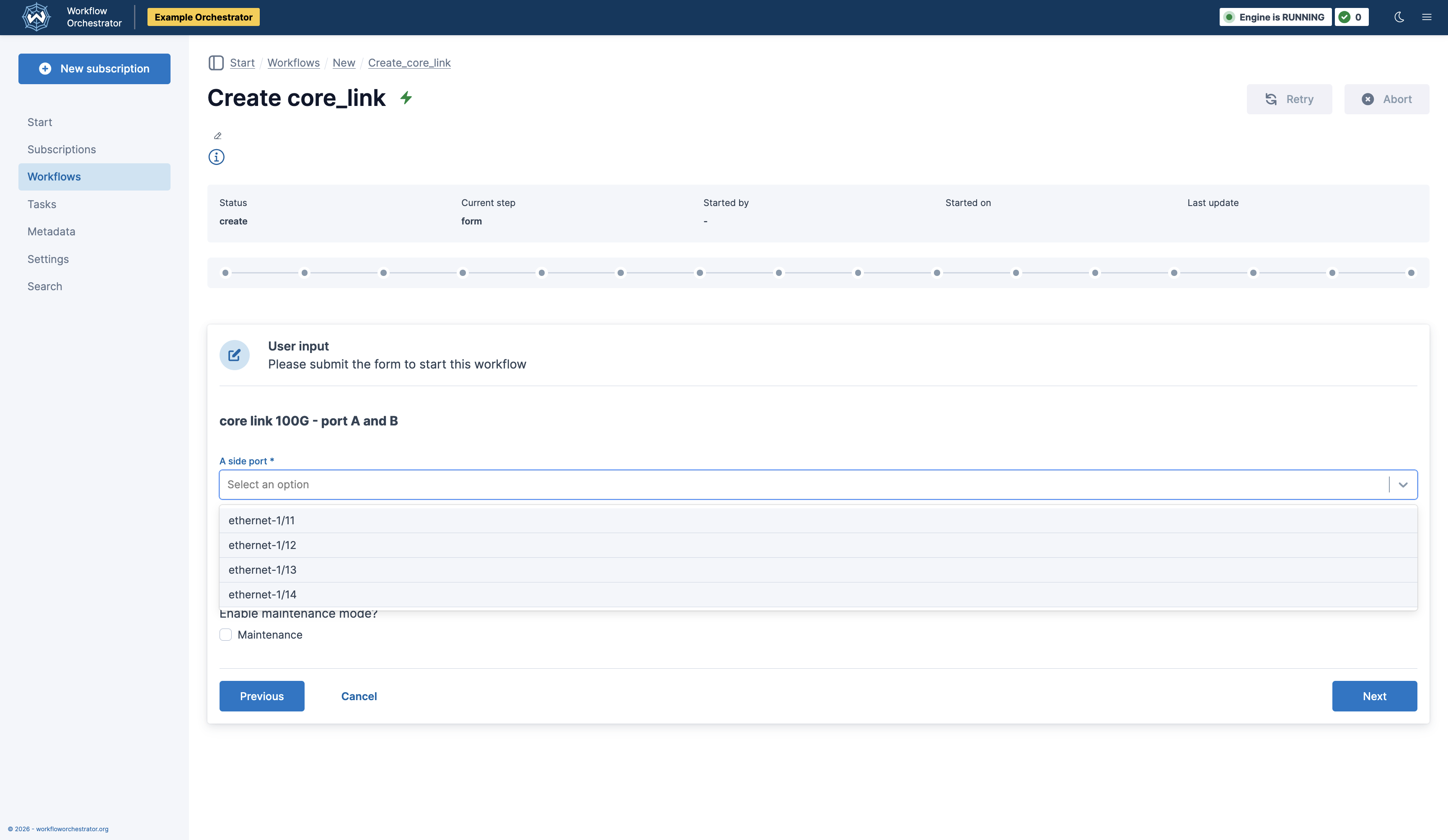
We’re then taken to a form for creating the new core link. As seen below, the form is multi-part with choices pregenerated for the fields.
In this case, the choices are generated dynamically from a Netbox inventory. Workflow Orchestrator makes it easy for software developers to generate templated forms entirely on the backend using the Pydantic Forms package, with no front-end code required.
After submitting each part of the form, the Create workflow is started. A workflow is composed of multiple steps, and the status of each step is visible in the UI as it completes. Any step that generates data can be expanded in the UI to view its output. Below, we can see the output of the Assign IPv6 Prefix step.
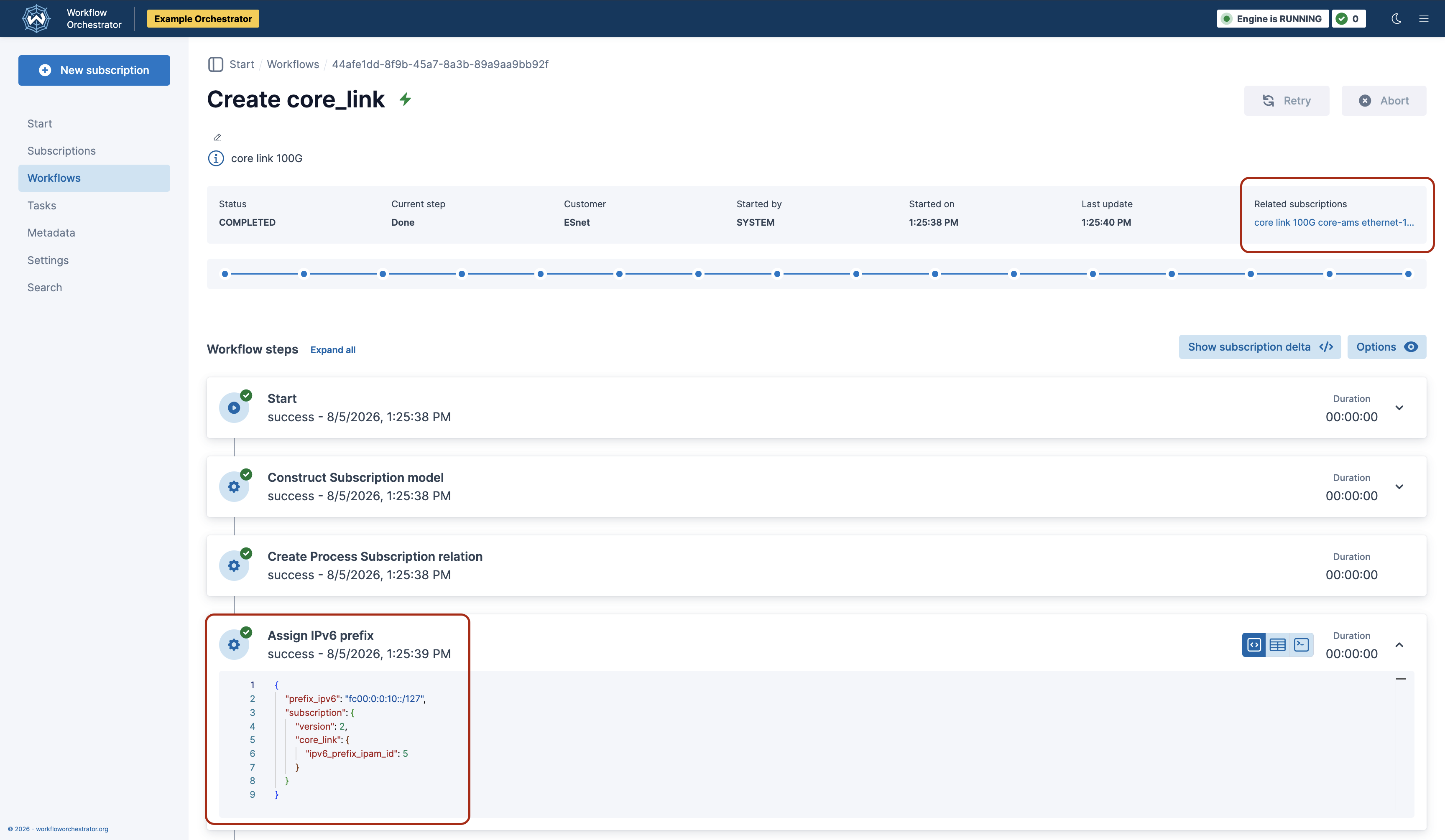
A link in the upper-right corner of the workflow output (above) takes us to the subscription we created (below).
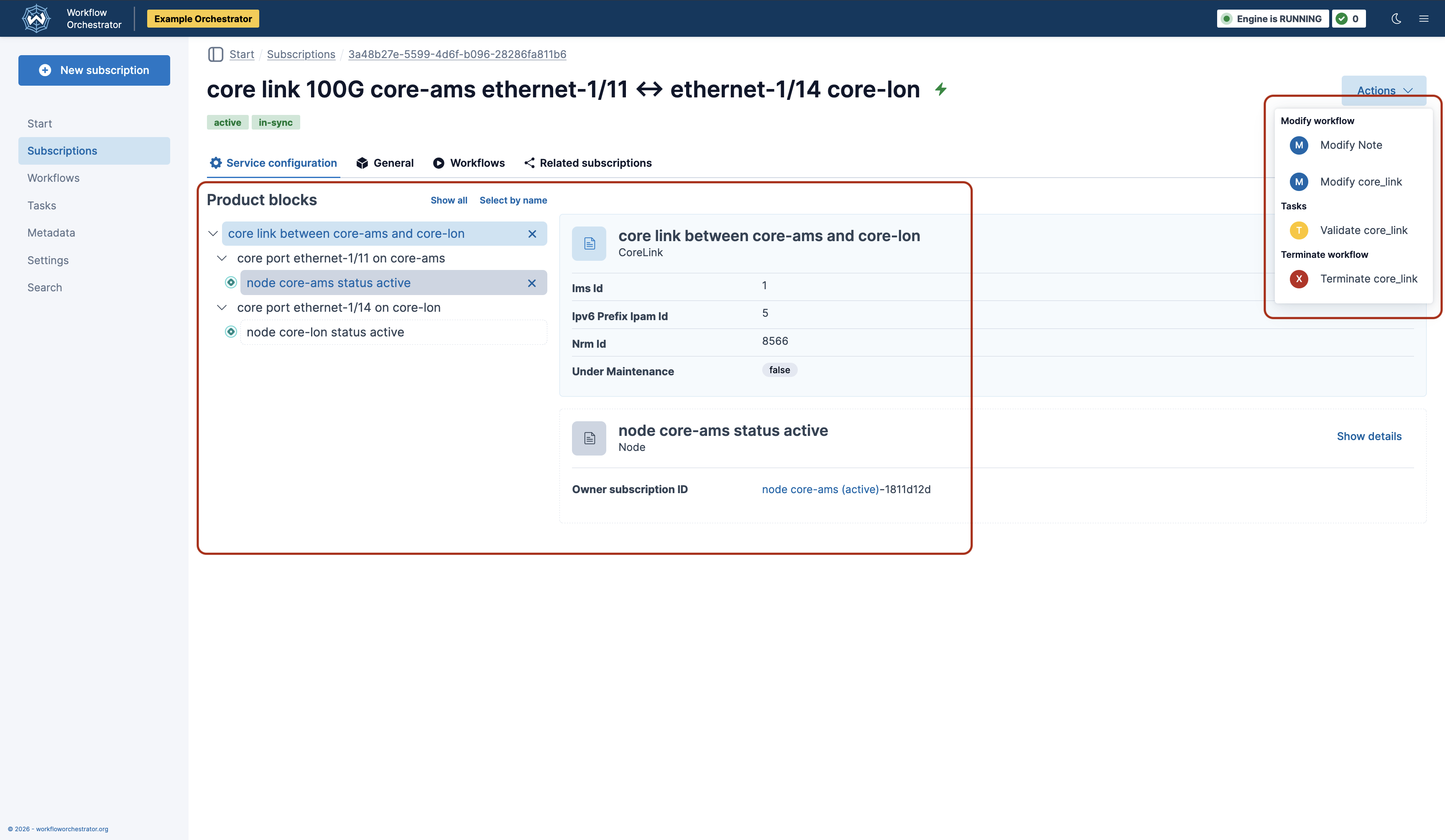
On the left, we can see various details about both the Core Link subscription, the ports on either end, and the nodes (also subscriptions) each port resides on.
On the right, the Actions dropdown lists the workflows available to us for further managing the subscription’s lifecycle.
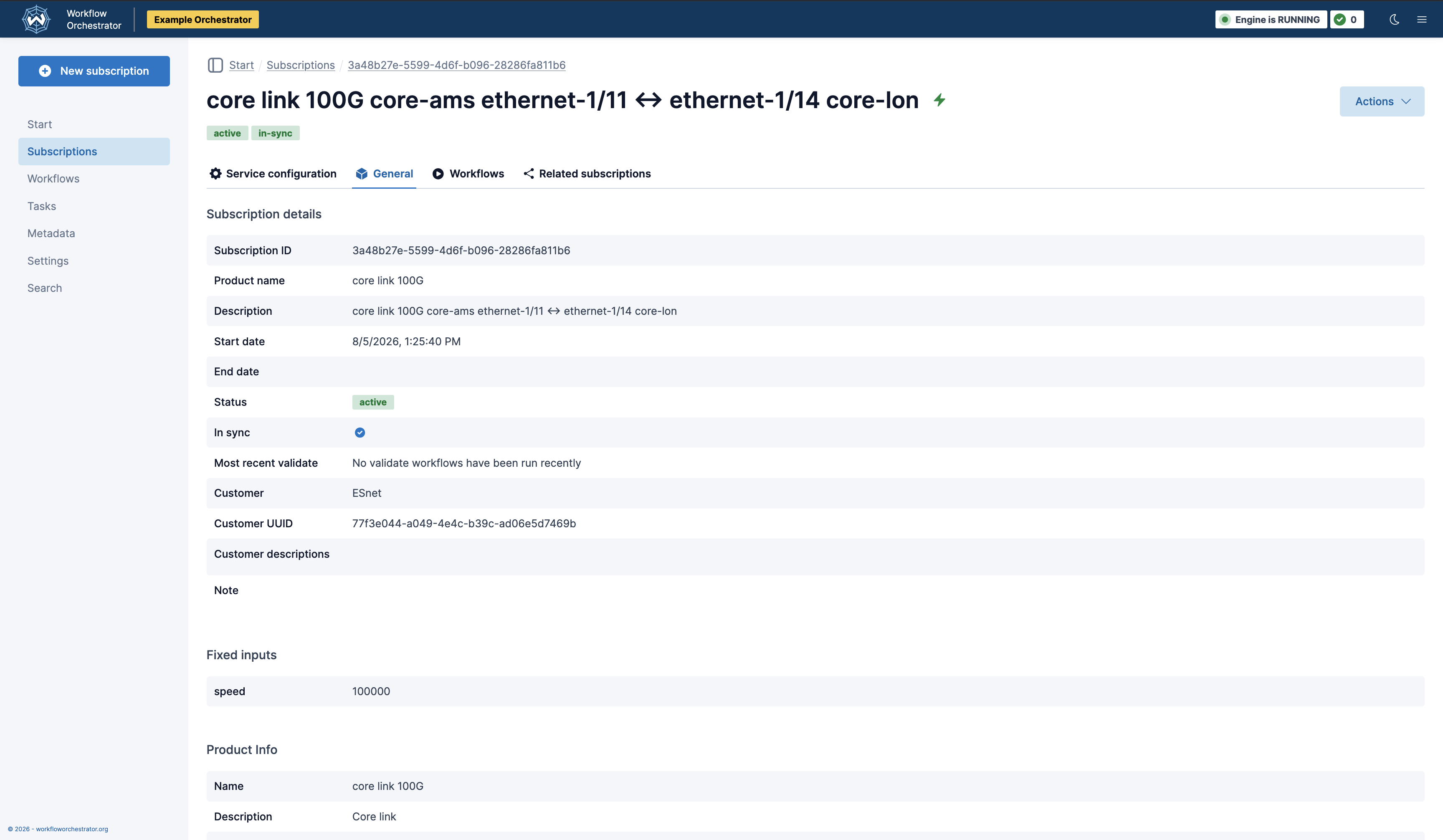
The General tab provides more extensive information about the subscription.
Additional Actions
Above, we saw the Actions available to manage a Core Link subscription after it was created.
Modify core_link: Users can define modify workflows to update the subscription database and any orchestrated external resources. These workflows facilitate changes to a subscription mid-lifecycle.
Validate core_link: Users can define validation workflows to verify the data in the WFO database against the external systems it manages. An error in a validation workflow places the corresponding subscription in an Out of Sync state, which flags it for remediation and blocks execution of its workflows. For example, if WFO manages a resource in Netbox and that resource is then edited directly in Netbox, this could be detected with a validation workflow.
Terminate core_link: Users can define terminate workflows in order to deprovision a subscription and any resources orchestrated on its behalf. Terminated subscriptions are still accessible for reference.
Users aren’t limited to these workflows. For example, it can be helpful to create distinct modify workflows for the same product to make unrelated changes. Users can also create Tasks, which are simply workflows that aren’t tied to any subscription. Tasks can be run automatically via WFO’s scheduling features, which can be customized to run at any time or frequency.
Behind the Scenes
So what’s actually happening behind the scenes when we run these workflows?
WFO provides none of the facilities for talking to Netbox, NSO, Ansible, etc. These features are implemented by other packages or by the software team leveraging the framework.
In particular, each workflow is created from a number of user-defined steps. A step is just a Python function that can be re-used by developers across workflows. Usually, each step is responsible for interacting with an external resource: an inventory system, a database, a network device, an HTTP API, etc. When a workflow fails for some reason, it can be retried beginning at whichever step failed.
If you want to see the code for yourself, the above example came from the example-orchestrator repo.
The Core Link producted is defined by a Product and its constituent Product Blocks, along with its workflows.
The workflows update the inventory system, Netbox, via services/netbox.py.
By convention, user-defined modules for interacting with external services are organized under services/.
Next Steps
To deploy your own Workflow Orchestrator, you will need two services:
- A web backend. You will develop a Python application that imports the
orchestrator-corepackage as a dependency. - A web frontend served over HTTP. You may develop a React application using the
orchestrator-ui-componentsNPM package, but it’s easiest to start by modifying a copy of theexample-orchestrator-uiapplication for your own use.
Next, see The Framework for an architectural walkthrough of the software stack.